Tuesday, April 3, 2012

Integrating Exchange UM with Lync 2010

 
 http://www.lynclog.com/2011/04/integrating-exchange-um-with-lync-2010.html
 
Until now, my lab was under domain “drago.ws”. Recently I acquired “lynclog.com” and for the last two days I have been deploying another lab. From now on, our examples will be on this lab – still same topology, different domain.

Now that I have deployed Microsoft Exchange 2010 SP1, it is time to configure Unified Messaging role to work with Lync and further extend testing for voicemail, Subscriber Access, Auto attendant etc. As usual, when deploying new software and/or roles, I made sure the OS and product is fully patched and updated. Another habit of mine is to resolve all errors or warnings in the Windows Event log before attempt to integrate products and services. My previous experience thought me that something “innocent” that I postponed for resolving later sometimes lead to major problem else seems unrelated…

On my UM server, first I made sure TLS is enabled. Fact is – I could not install certificate on the UM server unless TLS or Dial is enabled.
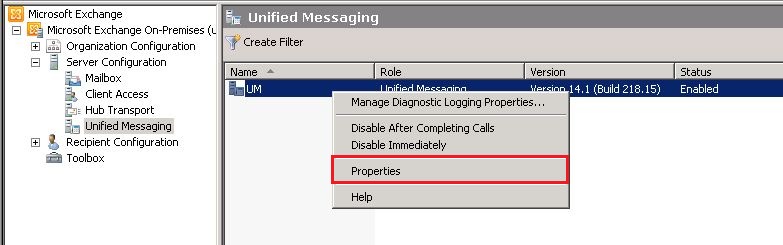


Because TLS support was turned ON, our UM server needs a certificate, else the service will not start. This certificate must be from Trusted Root CA and since UM is internal service only, a certificate form our Domain CA will be sufficient.

In EMC, server node, click on your UM server and proceed further


I just created offline certificate request. Now I will go to my Domain Certificate Services we site and process the request.
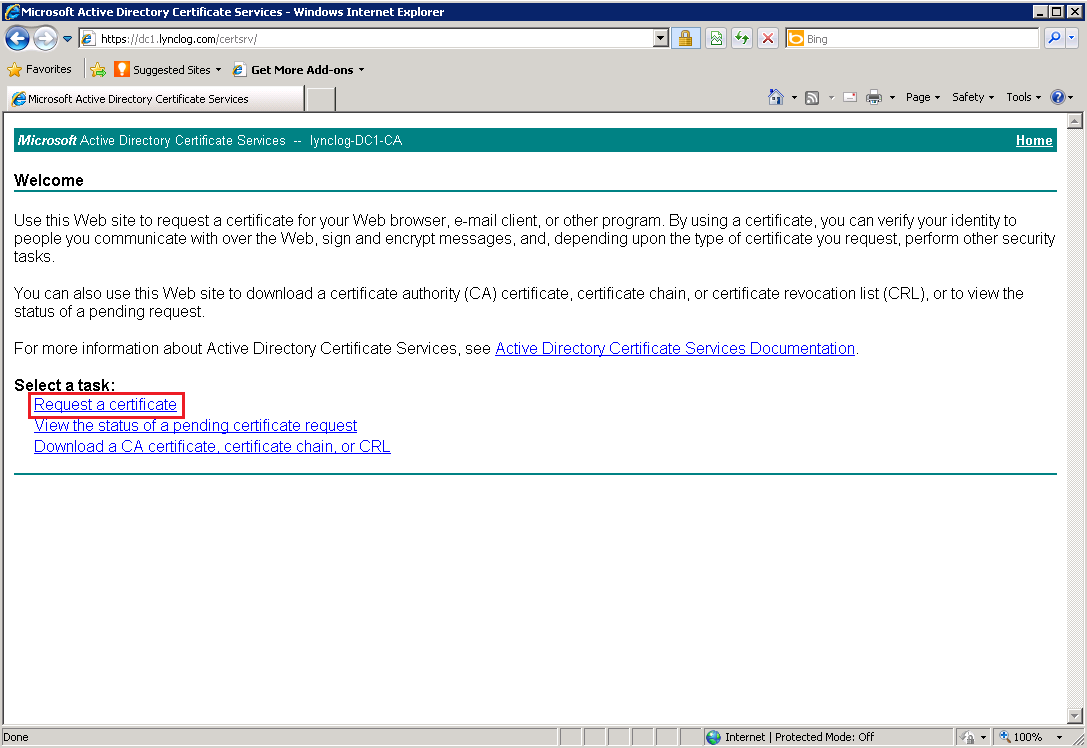


Here I need to open my request (c:\um.req) with notepad and copy the content. It is very important to copy the text exactly as it is. I always use STRL + A to make sure only the necessary text was copied.

…paste the text in the request page and submit the request.

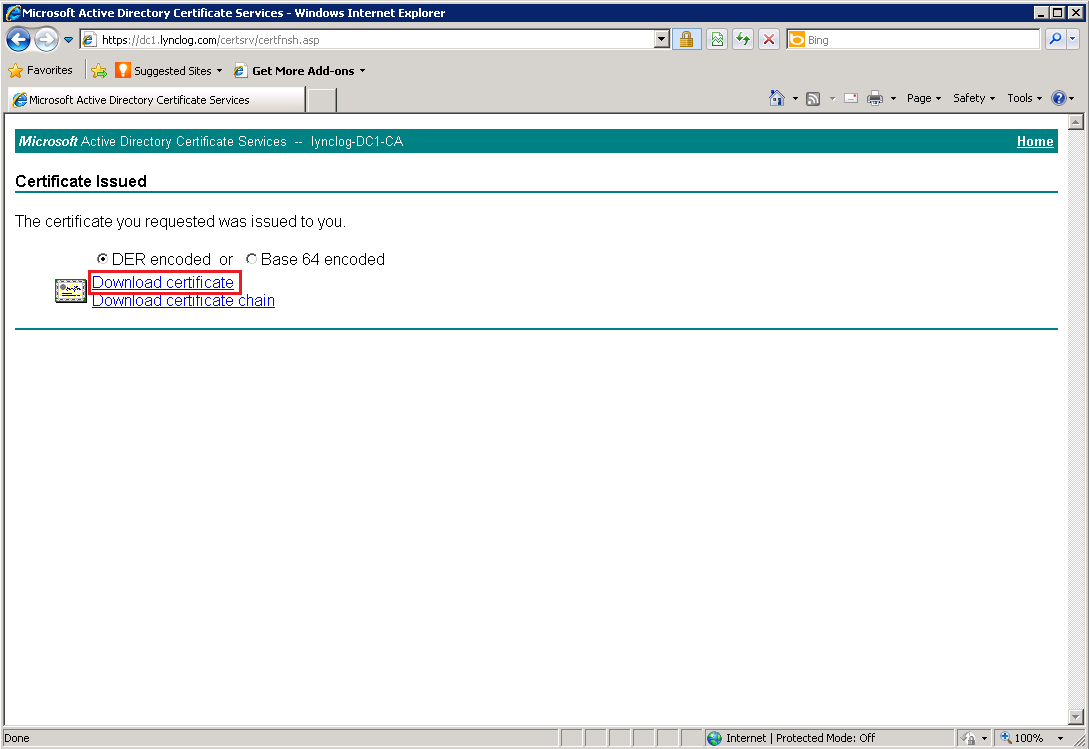

Next step is to complete the pending request. Click on the request to see “Complete Pending Request” option…
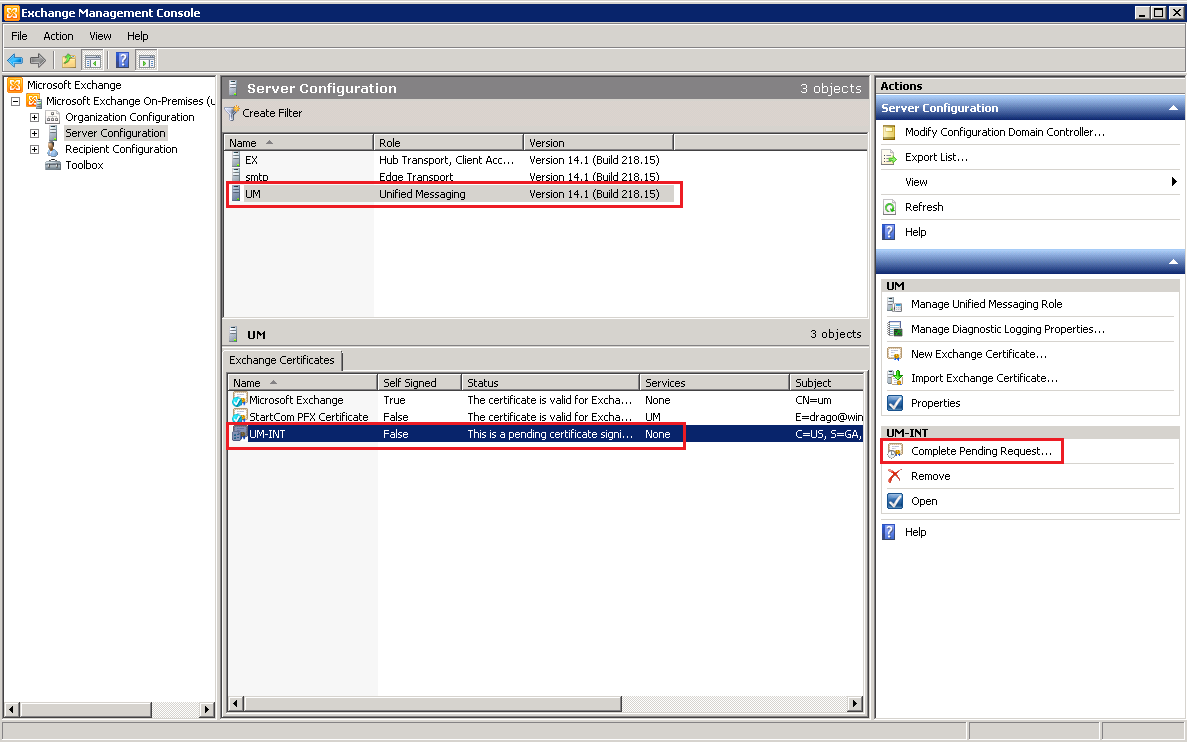


…and now I see the certificate as Valid. However, I must assign service(s) to it.


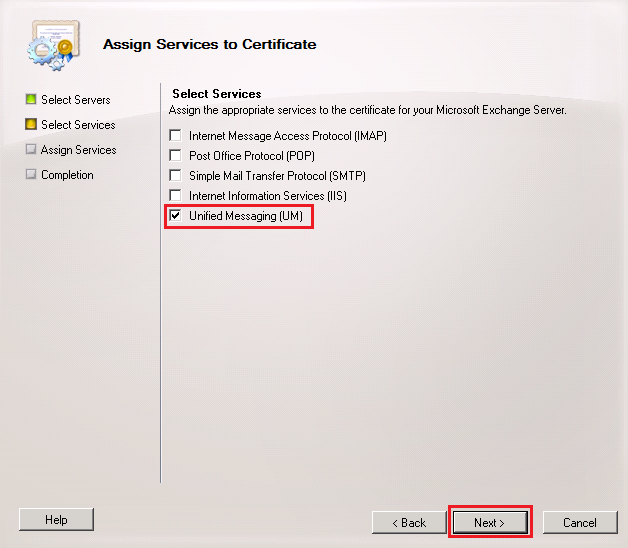

At the end, I have a valid certificate assigned to UM server. Reboot and let’s move further.


Next, I will create UM dial plan.


My dial plan is not completed yet. I still must create Subscriber access number and so other customization.


***Note that here I used two numbers - +14785550001 which is full US E.164 number and “+0099” which, because has “+” on front, is still considered E.164. I want to see if this number can be utilized later somehow.


***ALERT***ALERT***ALERT***

Apparently there are some changes introduced with SP1. Make sure you follow the next steps or your Auto Attendant will not be able to transfer to extensions.


***You must apply at his point.


 Next, I will customize my UM Mailbox Policy created automatically when the Dial plan was enabled. Since this is lab, I will change the Minimum PIN Policy to 4 digits and remove the PIN expiration.


…and leave the rest to default settings.


Lastly, Auto Attendant. Frankly, with the introduction of RGS, I rarely use AA except in one case (the Main college number, where the caller has an option to dial by extension or name).


…and customize it.


Let’s move to our front end server and execute “C:\Program Files\Common Files\Microsoft Lync Server 2010\Support\OcsUmUtil.exe” from Command Prompt.


Oops. I forgot to change the Name of the contact object.


Move back to the UM server. In Exchange Management Shell, navigate to C:\Program Files\Microsoft\Exchange Server\V14\Scripts and execute .\ExchUCUtil.ps1


Monday, April 2, 2012

Install or Upgrade to Exchange 2010 SP2 Unified Messaging

You can deploy Exchange Server 2010 Service Pack 2 (SP2) on your Unified Messaging servers by performing a clean installation of Exchange 2010 SP2, by upgrading from Exchange Server 2007 SP3 to Exchange 2010 SP2, or by upgrading from the RTM or SP1 version of Exchange 2010 to Exchange 2010 SP2.
There are several steps that you must complete to correctly install or upgrade your Exchange Unified Messaging (UM) servers. However, different steps are required depending on the method you're using to deploy Exchange 2010 SP2 on your UM servers. These methods include:
The following steps are required to perform a clean installation of Exchange 2010 SP2 on a new Unified Messaging server.
Starting with Exchange 2010 SP1, the Unified Messaging server role relied on Unified Communications Managed API v. 2.0 (UCMA) for its underlying SIP signaling and speech processing. The UCMA platform, along with its prerequisites, must be installed on the UM server before you install or upgrade UM to Exchange 2010 SP2. If any of the prerequisites are missing from the server, Exchange 2010 SP2 Setup will inform you that the component is missing and provide you with a download link so you can download and install it. Then you can continue by restarting Setup for SP2.
The Unified Messaging server role in Exchange 2010 SP2 relies on the following components and requires that they be installed prior to installing SP2:
For more information about UCMA, see UCMA 2.0 Core Architecture or Overview of Unified Messaging.
You can download and install Exchange 2010 SP2 on each server or install SP2 from the Exchange 2010 SP2 DVD. Either way, you use the Microsoft Exchange Server 2010 Service Pack 2 Setup wizard to install Exchange 2010 SP2.
Exchange Unified Messaging language packs are version-specific and platform-specific. Since Exchange 2007, there have been separate releases for UM language packs, including the RTM version of Exchange 2007, Exchange 2007 SP1, SP2, and SP3, the RTM version of Exchange 2010, and Exchange 2010 SP1 and SP2. For some of these versions, both 32-bit and 64-bit downloads are available, but for other releases only 64-bit downloads are available.
It's very important that you install the correct version and platform of the UM language packs on a UM server. Don't install UM language packs on a Unified Messaging server that's running an earlier version of Exchange or that's designed for a 32-bit platform.
The last task to perform when you upgrade is to download and install the required Unified Messaging SP2 language packs that you need on the UM servers in your organization. Make sure to install each UM language pack on each UM server and to set the default language on all dial plans that the UM server is associated with. Setting the default language makes that language available to users. Each UM language pack is bundled in a single .exe file. To download the SP2 UM language packs, see Exchange Server 2010 SP2 UM Language Packs.
Ff630915.important(en-us,EXCHG.141).gifImportant:
To ensure that all Unified Messaging features are available in the UM language packs you install, you must install the Exchange 2010 Client and Server Language Pack on each UM server in the dial plan. If you don’t install the Client and Server Language Pack, some features may not work as expected. Some features, like Voice Mail Preview, will work in the language that's configured on the dial plan, but when only the UM language pack is installed. However, features like Outlook Voice Access and user interface text won’t work in the language chosen by the user without having both the UM language pack and the Client and Server Language Pack installed. The language pack bundle for Exchange Server 2010 Service Pack 2 (SP2) is integrated into the download for Exchange 2010 SP2. To download SP2 for Exchange 2010, see Microsoft Exchange Server 2010 Service Pack 2 (SP2). However, the language pack bundle for Exchange 2010 SP1 is still available. To download and install the additional Exchange 2010 SP1 client and server language packs on servers in your organization, see the Microsoft Exchange Server 2010 SP1 Language Pack Bundle.
After you install the Unified Messaging server, it's in an enabled state. However, before the UM server can answer and process incoming calls, you must add the UM server to a UM dial plan. You can add an Exchange 2010 SP2 UM server to one or more UM dial plans that have different security settings at the same time. For more information, see Add a UM Server to a Dial Plan.
The following steps are required to perform an upgrade on a Unified Messaging server that has Exchange 2007 SP3 installed to an Exchange 2010 SP2 Unified Messaging server.
Verify that you've deployed or upgraded the Client Access, Mailbox, and Hub Transport servers in your organization to Exchange 2010. For details, see Verify an Exchange 2010 Installation.
While you're upgrading the UM server running Exchange 2007 SP3, you don't want it to be able to answering incoming calls. Perform one of the following two tasks to prevent the UM server from answering incoming calls:
Unified Messaging language packs make it possible for Exchange 2007 and Exchange 2010 UM servers to speak additional languages to callers and recognize languages other than US English (en-US) when callers use Automatic Speech Recognition (ASR) or when voice messages are transcribed. Several UM language packs are available for Exchange 2010 SP2.
After you install the Unified Messaging sever role, only the en-US UM language pack is available. If you've installed other UM language packs in addition to the en-US language pack on any UM server, you must first remove all Exchange 2007 UM language packs except the en-US language pack (because it can't be removed). You must do this because of the differences between the speech services platform included with Exchange 2007 and the platform used for speech services and SIP signaling in Exchange 2010 SP2. For more information about the new UM language packs that are available, see New Unified Messaging Functionality and Voice Mail Features in Exchange 2010 SP1.
To check which UM language packs are installed, run one of the following commands.
  • To see a list of all the language packs that are installed on a specific UM dial plan, run:
    Get-UMDialPlan identity MyUMDialPlan |FormatList
    
  • To see a list of all the UM language packs installed on a single UM server, run:
    Get-UMServer -identity MyUMServer |FormatList
    
For more information about how to remove a language pack from a UM server, see How to Remove a Unified Messaging Language Pack from a Unified Messaging Server.
After you've removed all the language packs, install the Exchange 2010 SP2 version. For details, see Upgrade Exchange 2010 UM Language Packs from RTM or SP1 to Exchange 2010 SP2.
Ff630915.important(en-us,EXCHG.141).gifImportant:
If you have multiple UM dial plans in your organization, we recommend that you remove all UM language packs from each of the UM servers that are associated with a single dial plan. After you remove these language packs, you can install the prerequisites and Exchange 2010 SP2 and then install the SP2 UM language packs on each UM server.
Starting with Exchange 2010 SP1, the Unified Messaging server role relied on Unified Communications Managed API v. 2.0 (UCMA) for its underlying SIP signaling and speech processing. The UCMA platform, along with its prerequisites, must be installed on the UM server before you install or upgrade UM to Exchange 2010 SP2. If any prerequisite is missing from the server, Exchange 2010 Setup will inform you that the component is missing and provide you with a link so you can download and install it. Then you can continue by restarting Setup for Exchange 2010 SP2.
The Unified Messaging server role in Exchange 2010 SP2 relies on the following components, and requires that they be installed prior to installing SP2:
For more information about UCMA, see UCMA 2.0 Core Architecture or Overview of Unified Messaging.
After you've removed the Exchange 2010 RTM UM language packs from the UM servers, you can download and install Exchange 2010 SP2 on each UM server. You use the Microsoft Exchange Server 2010 Service Pack 2 Setup wizard to install Exchange 2010 SP2.
Exchange Unified Messaging language packs are version-specific and platform-specific. Since the original release of Exchange 2007, there have been separate releases for UM language packs, including Exchange 2007 RTM, Exchange 2007 SP1, SP2, and SP3, Exchange 2010 RTM, and Exchange 2010 SP1 and SP2. For some of these versions, both 32-bit and 64-bit downloads are available, but for other releases only 64-bit downloads are available.
It's very important that you install the correct version and platform of the UM language packs on a UM server. Don't install UM language packs on a Unified Messaging server that's running an earlier version of Exchange or that's designed for a 32-bit platform.
The last task to perform when you upgrade is to download and install the required Unified Messaging SP2 language packs that you need on the UM servers in your organization. Make sure to install each UM language pack on each UM server and to set the default language on all dial plans that the UM server is associated with. Setting the default language makes that language available to users. Each UM language pack is bundled in a single .exe file. To download the Exchange 2010 SP2 UM language packs, see Exchange Server 2010 SP2 UM Language Packs.
To ensure that all Unified Messaging features are available in the UM language packs you install, you must install the Exchange 2010 Client and Server Language Pack on each UM server in the dial plan. If you don’t install the Client and Server Language Pack, some features may not work as expected. Some features, like Voice Mail Preview, will work in the language that’s configured on the dial plan but when only the UM language pack is installed. However, features like Outlook Voice Access and user interface text won’t work in the language selected by the user without having both the UM language pack and the Client and Server Language Pack installed. The language pack bundle for Exchange Server 2010 Service Pack 2 (SP2) is integrated into the download for Exchange 2010 SP2. To download SP2 for Exchange 2010, see Microsoft Exchange Server 2010 Service Pack 2 (SP2). However, the language pack bundle for Exchange 2010 SP1 is still available. To download and install the additional Exchange 2010 SP1 client and server language packs on servers in your organization, see the Microsoft Exchange Server 2010 SP1 Language Pack Bundle.
After you install the Unified Messaging (UM) server, it's in an enabled state. However, before the UM server can answer and process incoming calls, you must add the UM server to a UM dial plan. You can add an Exchange 2010 SP2 UM server to one or more UM dial plans that have different security settings at the same time. For more information, see Add a UM Server to a Dial Plan.
The following steps are required to upgrade a Unified Messaging server running the RTM or SP1 version of Exchange 2010 to Exchange 2010 SP2.
While you're upgrading the UM server running Exchange 2010 RTM or SP1, you don't want it to be able to answering incoming calls. Perform one of the following two tasks to prevent the UM server from answering incoming calls:
Starting with Exchange 2010 SP1, the Unified Messaging server role relied on Unified Communications Managed API v. 2.0 (UCMA) for its underlying SIP signaling and speech processing. The UCMA platform, along with its prerequisites, must be installed on the UM server before you install or upgrade UM to Exchange 2010 SP2. If any prerequisite is missing from the server, Exchange 2010 Setup will inform you that the component is missing and provide you with a link so you can download and install it. Then you can continue by restarting Setup for Exchange 2010 SP2.
The Unified Messaging server role in Exchange 2010 SP2 relies on the following, and requires that they be installed prior to installing SP2:
For more information about UCMA, see UCMA 2.0 Core Architecture or Overview of Unified Messaging.
Unified Messaging language packs make it possible for Exchange 2007 and Exchange 2010 UM servers to speak additional languages to callers and recognize languages other than US English (en-US) when callers use Automatic Speech Recognition (ASR) or when voice messages are transcribed. Several UM language packs are available for Exchange 2010 SP2. For more information about the new UM language packs that are available, see New Unified Messaging Functionality and Voice Mail Features in Exchange 2010 SP1.
After you install the Unified Messaging sever role, only the en-US UM language pack is available. If you've installed other UM language packs in addition to the en-US language pack on any UM server, you must first remove all Exchange 2010 RTM or SP1 UM language packs except the en-US language pack (because it can't be removed). You must do this because of the differences between the speech services platform included with Exchange 2007 SP3 and Exchange 2010 RTM and SP1 and the platform used for speech services and SIP signaling in Exchange 2010 SP2.
To check which UM language packs are installed, run one of the following commands.
  • To see a list of all the language packs that are installed on a specific UM dial plan, run:
    Get-UMDialPlan identity MyUMDialPlan |FormatList
    
  • To see a list of all the UM language packs installed on a single UM server, run:
    Get-UMServer -identity MyUMServer |FormatList
    
For more information about how to remove a language pack from a UM server, see Remove a Unified Messaging Language Pack from a UM Server.
After you've removed all the language packs, install the Exchange 2010 SP2 version. For details, see Upgrade Exchange 2010 UM Language Packs from RTM or SP1 to Exchange 2010 SP2.
Ff630915.important(en-us,EXCHG.141).gifImportant:
If you have multiple UM dial plans in your organization, we recommend that you remove all UM language packs from each of the UM servers that are associated with a single dial plan. After you remove these language packs, you can install the prerequisites and Exchange 2010 SP2 and then install the SP2 UM language packs on each UM server.
After you've removed the Exchange 2010 RTM UM language packs from the UM servers, you can download and install Exchange 2010 SP2 on each UM server. You use the Microsoft Exchange Server 2010 Service Pack 2 Setup wizard to install Exchange 2010 SP2.
Exchange Unified Messaging language packs are version-specific and platform-specific. Since Exchange 2007, there have been separate releases for UM language packs, including Exchange 2007 RTM, Exchange 2007 2007 SP1, SP2, and SP3, Exchange 2010 RTM, and Exchange 2010 SP1 and SP2. For some of these versions, both 32-bit and 64-bit downloads are available, but for other releases only 64-bit downloads are available.
It's very important that you install the correct version and platform of the UM language packs on a UM server. Don't install UM language packs on a Unified Messaging server that's running an earlier version of Exchange or that's designed for a 32-bit platform.
The last task to perform when you upgrade is to download and install the required Unified Messaging SP2 language packs that you need on the UM servers in your organization. Make sure to install each UM language pack on each UM server and to set the default language on all dial plans that the UM server is associated with. Setting the default language makes that language available to users. Each UM language pack is bundled in a single .exe file. To download the Exchange 2010 SP2 UM language packs, see Exchange Server 2010 SP2 UM Language Packs.
Ff630915.important(en-us,EXCHG.141).gifImportant:
To ensure that all Unified Messaging features are available in the UM language packs you install, you must install the Exchange 2010 Client and Server Language Pack on each UM server in the dial plan. If you don’t install the Client and Server Language Pack, some features may not work as expected. Some features, like Voice Mail Preview, will work in the language that’s configured on the dial plan but when only the UM language pack is installed. However, features like Outlook Voice Access and user interface text won’t work in the language selected by the user without having both the UM language pack and the Client and Server Language Pack installed. The language pack bundle for Service Pack 2 (SP2) is integrated into the download for Exchange Server 2010 SP2. To download SP2 for Exchange 2010, see Microsoft Exchange Server 2010 Service Pack 2 (SP2). However, the language pack bundle for Exchange 2010 SP1 is still available. To download and install the additional Exchange 2010 SP1 client and server language packs on servers in your organization, see the Microsoft Exchange Server 2010 SP1 Language Pack Bundle.
When you install the Unified Messaging (UM) server, it's left in an enabled state. However, before the UM server can answer and process incoming calls, you must add the UM server to a UM dial plan. You can add a Microsoft Exchange Server 2010 SP2 UM server to one or more UM dial plans with different security settings at the same time. For details, see Add a UM Server to a Dial Plan.

 http://technet.microsoft.com/en-us/library/ff630915.aspx
The Lync Server 2010 Setup or Remove Component installation fails on the prerequisite check for the Media-Format-Package and returns the following information back to the Setup Lync Server components page:

Name of prerequisite: Wmf2008R2 MM/DD/YYYY HH:MM:SS AM
Type of prerequisite: exe MM/DD/YYYY HH:MM:SS AM
Method used to check prerequisite state: WmfNeeded2008R2() MM/DD/YYYY HH:MM:SS AM
Result of state check: True MM/DD/YYYY HH:MM:SS AM
Executing external command: C:\Windows\system32\dism.exe /online /norestart /add-package
/packagepath:C:\Windows\servicing\Packages\Microsoft-Windows-Media-Format-
Package~31bf3856ad364e35~amd64~~6.1.7600.16385.mum /ignorecheck MM/DD/YYYY HH:MM:SS AM
Installation result: -2146762496 MM/DD/YYYY HH:MM:SS AM
Error: Prerequisite installation failed: Wmf2008R2
Details
Type: PrereqInstallFailed
Stack Trace
at Microsoft.Rtc.Internal.Tools.Bootstrapper.BootstrapperTask.AddMsiPrereq(String prereqName)
at Microsoft.Rtc.Management.Internal.Utilities.LogWriter.InvokeAndLog[T](Action`1 action, T arg)
Type of prerequisite: exe MM/DD/YYYY HH:MM:SS AM
Method used to check prerequisite state: WmfNeeded2008R2() MM/DD/YYYY HH:MM:SS AM
Result of state check: True MM/DD/YYYY HH:MM:SS AM
Executing external command: C:\Windows\system32\dism.exe /online /norestart /add-package
/packagepath:C:\Windows\servicing\Packages\Microsoft-Windows-Media-Format-
Package~31bf3856ad364e35~amd64~~6.1.7600.16385.mum /ignorecheck MM/DD/YYYY HH:MM:SS AM
Installation result: -2146762496 MM/DD/YYYY HH:MM:SS AM
Error: Prerequisite installation failed: Wmf2008R2
Details
Type: PrereqInstallFailed
Stack Trace
at Microsoft.Rtc.Internal.Tools.Bootstrapper.BootstrapperTask.AddMsiPrereq(String prereqName)
at Microsoft.Rtc.Management.Internal.Utilities.LogWriter.InvokeAndLog[T](Action`1 action, T arg)
Back to the top
CAUSE
The Lync Server 2010 Setup or Remove Component installation prerequisite check cannot locate the Server 2008 R2 SP1 version of Microsoft Windows Media Format.
Back to the top
RESOLUTION
To resolve this problem, install Windows Desktop Experience. To do this, follow these steps:

Click Start, click Administrative Tools, and then double-click Server Manager
In Server Manager, click Add Features under Features Summary
In the Add Features Wizard dialog box, make sure that the Desktop Experience option is selected
Click Next, and then click Install
After the installation process is complete, click Close, and then close Server Manager

Note After you install Windows Desktop Experience, you must restart the computer